









How to Cast Your Phone or PC to Any Smart TV — The Complete, Accurate Guide for Nigerian Users

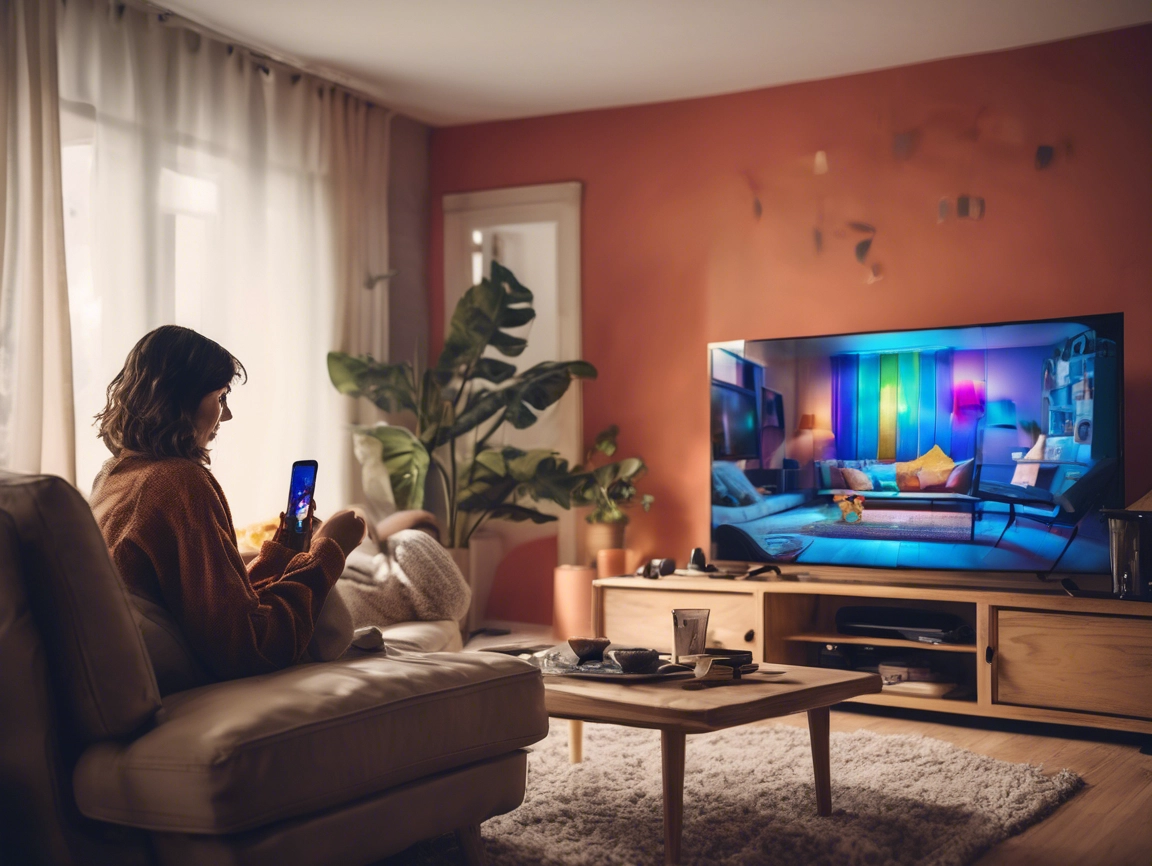
By DISPASAL | Your Trusted Electronics & Home Appliance Partner
Why We Wrote This Guide
Almost every week at DISPASAL, we receive calls and messages from customers who are frustrated with their Smart TVs. Some say casting “does not work.” Some have tried four different apps and all of them lag or disconnect. A few — and this is the part that genuinely concerns us — have accused us of selling them a fake Smart TV simply because they could not figure out how to cast from their phone.
None of those TVs were fake. Every single one was a genuine, working Smart TV. The problem in every case was a gap in understanding about how casting actually works, which phones need what, why iPhones behave differently from Android phones, why some TVs require an app while others do not, and what to do when the standard method simply does not work for your specific combination of devices.
This guide closes every one of those gaps. It is written specifically for Nigerian users, the phones we commonly use, the TV brands sold here, and the real-world limitations of our internet environment. It is practical, accurate, and up to date as of 2025/2026. Follow it step by step and casting will work.
Part 1: The Fundamental Concepts — Understand These First
Before any steps make sense, you need to understand two core concepts. Skip this section and you will always be guessing. Read it and everything else will click immediately.
Casting vs Screen Mirroring — They Are NOT the Same Thing
People use these words interchangeably, but they describe two very different actions. Using the wrong method for what you want to do is one of the most common causes of frustration.
Screen Casting means you send a specific piece of content — a YouTube video, a Netflix film, a Spotify playlist — from your phone to the TV. Once cast, the TV takes over and plays that content independently and directly. Your phone is no longer involved in delivering the content. It becomes a remote control only.
This means you can put your phone face-down, switch to WhatsApp, reply to messages, or even turn the screen off — and the video on the TV keeps playing without interruption. The TV fetches the content on its own. Casting also produces the highest possible video quality because the TV processes the stream directly, not through your phone.
Screen Mirroring means you create a live, real-time duplicate of your entire phone screen on the TV. Whatever is on your phone screen appears on the TV simultaneously — every tap, every notification, every app switch. This is more versatile because it works with any content on your phone, including downloaded videos, photos, games, and documents that have no cast button.
The trade-off: your phone must stay active and its screen must remain on throughout. If you switch apps, the TV mirrors that switch. If a notification pops up, it appears on the TV. Battery also drains faster because your phone is continuously transmitting its display.
When to use which:
| What you want to do | Method to use |
|---|---|
| Watch YouTube or Netflix on the big screen | Casting (use the app’s cast icon) |
| Show a downloaded video or movie | Screen mirroring |
| Display family photos or videos | Screen mirroring |
| Present a document or slides | Screen mirroring |
| Play a mobile game on the TV | Screen mirroring |
| Listen to music while using the phone | Casting |
| Show someone an app or how something works | Screen mirroring |
The Three Wireless Protocols — Why Compatibility Matters
This is the part nobody explains and the reason most casting problems exist.
When your phone and TV communicate wirelessly to cast or mirror, they use a specific technical protocol — a communication standard. Both devices must speak the same protocol for the connection to work. There are three main protocols in use today:
Google Cast (also called Chromecast Built-In) Developed by Google. This is the protocol behind the small cast icon that appears inside YouTube, Netflix, Spotify, and hundreds of other apps. When you tap the cast icon in an app, Google Cast handles the connection.
Google Cast works by having your phone send a command to the TV, which then fetches the content itself. This is why casting keeps playing when your phone screen is off.
Supported on: all Android phones natively. Also works from iPhones through supported apps. Any Smart TV running Android TV or Google TV has Google Cast built in — including Sony, TCL, Skyrun, Hisense (some models), and Xiaomi TVs. This is the most widely compatible protocol in the Nigerian market.
AirPlay (Apple’s protocol) Developed by Apple for Apple devices. AirPlay handles both content casting and full screen mirroring from iPhones, iPads, and Macs. It is excellent — fast, stable, and high quality. But it is Apple’s proprietary technology, and for it to work, the TV must specifically support AirPlay.
TVs that support AirPlay include Samsung (most models from 2019 onwards), LG (most models from 2019 onwards), Sony Bravia Google TV models, and some higher-end Hisense models. Budget TVs, older Smart TVs, and most entry-level brands in Nigeria do NOT support AirPlay.
Android phones cannot use AirPlay natively — it is Apple only.
Miracast A wireless display standard that creates a direct connection between the phone and TV without needing a router or internet. The phone and TV communicate directly with each other. This powers features like Samsung’s Smart View and LG’s Screen Share when they operate without internet.
Miracast is supported on most Android phones and many Smart TVs. It is primarily a screen mirroring protocol. iPhones do not support Miracast.
Why this explains most casting failures: An iPhone looking for AirPlay will not find a TV that does not support it — the TV simply will not appear in the list. An Android phone trying to cast to a TV with no Google Cast support will fail. Two devices trying to use incompatible protocols cannot communicate regardless of how many times you retry.
Knowing your phone’s protocol and your TV’s supported protocols is the foundation of making casting work.
Part 2: Does Your Android Phone Have Built-In Casting?
This is the question that causes the most confusion among Nigerian Android users — and the honest answer is: it depends on the phone, but most modern Android phones do have it built in.
Phones That Have Built-In Casting (No App Needed)
Most Android phones manufactured from 2018 onwards have Google Cast and/or screen mirroring built into the operating system. These include:
- All Samsung Galaxy phones (A series, S series, M series) — feature is called Smart View
- Tecno Camon and Spark series (recent models) — called Screen Cast or Cast
- Infinix Hot and Note series (recent models) — called Screen Cast
- Xiaomi and Redmi phones — called Cast or Wireless Display
- Oppo and Vivo phones — called Screen Mirroring or Cast
- Google Pixel phones — called Cast
- iPhone — uses AirPlay (covered separately in Part 3)
How to find it on your Android phone:
Method 1 — Quick Settings (fastest): Swipe down from the top of your phone screen once to open the notification shade. Then swipe down again to reveal all Quick Settings tiles. Look for a tile labelled Smart View, Cast, Screen Cast, Screen Mirroring, or Wireless Display. If you do not see it immediately, swipe left — Quick Settings tiles continue across multiple pages.
Method 2 — Settings Menu: Open Settings → Connections (or Connected Devices on some phones) → look for Cast, Screen Cast, Smart View, or Wireless Display.
Method 3 — Inside a specific app: Open YouTube, Netflix, or any streaming app. Look for the cast icon inside the app — it looks like a small rectangle with curved WiFi waves at the bottom corner. This appears when your TV and phone are on the same WiFi network.
Phones That May Need an App
Some older Android phones (particularly budget phones manufactured before 2018) or some specific phone models do not have the built-in cast feature. If you have searched thoroughly in Quick Settings and the Settings menu and found nothing, your phone may fall into this category.
Also note: some phones have the feature but it is hidden or labelled differently. Before concluding your phone does not have it, try searching inside Settings for “cast” or “mirror” using the search bar at the top of the Settings menu.
If your phone genuinely lacks built-in casting, reliable third-party apps are available — covered in Part 5.
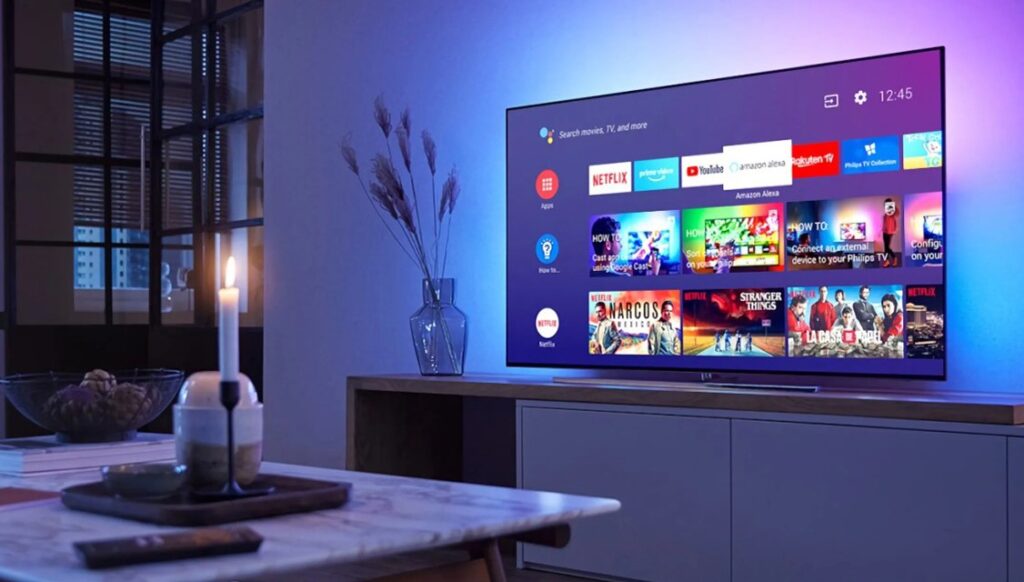
Smart TV
Buy Original Smart TVs Online in Nigeria
Part 3: Casting and Mirroring from an Android Phone — Complete Step-by-Step
Method 1: Casting from Inside an App (Best for Video and Music)
Use this for YouTube, Netflix, Showmax, Prime Video, Spotify, and any streaming service. This is the cleanest, highest-quality method and should always be your first choice for watching content.
Requirements:
- Both phone and TV connected to the same WiFi network
- TV must support Google Cast (Android TV, Google TV, or Chromecast-enabled)
Steps:
- Connect both your phone and TV to the same WiFi network. Confirm this — open WiFi settings on the phone, note the network name. Check the TV’s WiFi settings and confirm it shows the same network name.
- Open your streaming app — YouTube for example.
- Find the video you want to watch.
- Look for the cast icon inside the app. In YouTube it appears at the top right of the screen. In Netflix it appears in the top left when a video is playing. It looks like a small screen with curved signal waves.
- Tap the cast icon. A list of available devices appears. Your TV’s name should appear here.
- Tap your TV’s name. The connection establishes. The video transfers to the TV.
- You can now lock your phone or use it for other things. The TV is playing independently.
Important — Netflix and Prime Video screen mirroring block: Netflix and Amazon Prime Video intentionally block full screen mirroring due to copyright protection. If you try to mirror your phone screen while Netflix is playing, the TV shows a black screen. The ONLY way to cast Netflix is through the in-app cast icon as described above — not through the phone’s system screen mirroring. This is not a fault with your TV or phone. It is deliberate behavior by Netflix.
Method 2: Screen Mirroring the Entire Phone (For Everything Else)
Use this when you want to show a downloaded video, photos, a document, a game, or anything on your phone that does not have a cast button.
Requirements:
- Both devices on the same WiFi network
- TV must support Miracast or have screen mirroring capability
Steps by phone brand:
Samsung phones (Smart View):
- Connect both devices to the same WiFi network.
- Swipe down from the top of the screen twice to open Quick Settings fully.
- Tap Smart View.
- Samsung will scan for available devices. Your TV’s name appears in the list.
- Tap the TV name. A connection request may appear on the TV — accept it.
- Your Samsung phone screen appears on the TV in real time.
Tecno / Infinix phones (Screen Cast):
- Connect both devices to the same WiFi network.
- Swipe down from the top of the screen twice.
- Look for Screen Cast or Cast in Quick Settings.
- Tap it. Available devices appear.
- Tap your TV name to connect.
If you cannot find Screen Cast in Quick Settings: go to Settings → Display → Cast (or Screen Cast).
Xiaomi / Redmi phones (Cast / Wireless Display):
- Connect both to the same WiFi.
- Swipe down from the top twice.
- Look for Cast tile in Quick Settings.
- Tap Cast. Your TV should appear if it supports Miracast or Google Cast.
- Tap to connect.
Alternative path: Settings → Connected Devices → Cast or Wireless Display.
Oppo / Vivo phones (Screen Mirroring):
- Both devices on same WiFi.
- Swipe down from top twice.
- Look for Screen Mirroring in Quick Settings.
- Tap it. Select your TV from the list.
General Android (any brand not listed above):
- Open Settings.
- Tap the search bar at the top and type “cast” or “mirror.”
- The relevant setting should appear in the results.
- Or go to: Settings → Connected Devices (or Connections) → Cast / Screen Mirroring.
Quick Reference — Cast Feature Names by Android Brand
| Phone Brand | Feature Name | Where to Find It |
|---|---|---|
| Samsung | Smart View | Quick Settings |
| Tecno / Infinix | Screen Cast | Quick Settings |
| Xiaomi / Redmi | Cast | Quick Settings |
| Oppo / Vivo | Screen Mirroring | Quick Settings |
| Itel | Screen Share | Quick Settings or Settings |
| Google Pixel | Cast | Quick Settings |
| Nokia | Cast | Settings → Connected Devices |
Part 4: Casting and Mirroring from an iPhone — Read This Carefully
The iPhone situation is different from Android in a fundamental way, and understanding this prevents enormous frustration. Many Nigerian iPhone users have spent hours trying to cast to their Smart TVs and concluded the TV does not work. In most cases, the TV works fine — the issue is a protocol mismatch between the iPhone and the TV.
The Core Reality
iPhones use AirPlay — Apple’s proprietary wireless protocol — for both content casting and screen mirroring. AirPlay is excellent technology. The challenge is that Apple controls it strictly, and only TVs that specifically support AirPlay can be used for iPhone screen mirroring through the system settings.
Many Smart TVs sold in Nigeria — particularly mid-range and budget models — do not support AirPlay. If your TV does not support AirPlay, your iPhone’s Screen Mirroring feature simply will not find it, and the TV will not appear in the list.
This is not a fault with your iPhone. It is not a fault with the TV. It is a compatibility gap.
What Works on Almost Any Smart TV — In-App Casting
Here is the good news that many iPhone users do not know: you can still cast from your iPhone to most Smart TVs using the cast button inside apps — even if the TV does not support AirPlay.
Apps like YouTube, Netflix, Spotify, and Showmax support Google Cast (Chromecast), which works independently of AirPlay. When you tap the cast icon inside the YouTube app on your iPhone and your TV is an Android TV or Google TV, the cast works perfectly. Your iPhone does not need AirPlay for this.
This means:
- iPhone + YouTube app + Android TV or Google TV → works perfectly via in-app casting
- iPhone + Netflix app + Android TV or Google TV → works perfectly via in-app casting
- iPhone + Screen Mirroring system feature + TV without AirPlay → will NOT work
How to Mirror Your iPhone Screen When the TV Supports AirPlay
If you have a Samsung, LG, Sony, or a Hisense model that supports AirPlay, follow these steps:
Step 1 — Enable AirPlay on the TV: On the TV, go to Settings. Look for an option labelled AirPlay, AirPlay & HomeKit, or Apple AirPlay. Toggle it to ON. On some TVs this is under the Network settings or the General settings. On Samsung, it is under Settings → General → Apple AirPlay Settings. On LG, it is under Settings → Home Dashboard → AirPlay.
Step 2 — Connect both devices to the same WiFi.
Step 3 — Open Control Center on the iPhone:
- On iPhone X and all newer models: Swipe down from the top-right corner of the screen.
- On older iPhones (iPhone 8 and below): Swipe up from the bottom of the screen.
Step 4 — Tap Screen Mirroring: The Screen Mirroring button looks like two overlapping rectangles. Tap it.
Step 5 — Select your TV: Your TV should appear in the list. Tap its name.
Step 6 — Enter the code if prompted: Some TVs display a four-digit code on screen when you first connect. Enter that code on your iPhone and tap OK. This verification only happens the first time — after that, the connection is remembered.
Step 7 — Your iPhone screen is now mirrored on the TV.
To stop mirroring: open Control Center again, tap Screen Mirroring, and tap Stop Mirroring.
What to Do If Your TV Does NOT Support AirPlay
If your iPhone screen mirroring cannot find your TV, you have three practical options:
Option 1 — Use in-app casting for streaming content. For YouTube, Netflix, Showmax, and similar apps, use the cast icon inside the app. This works regardless of AirPlay support.
Option 2 — Use a wired connection. A Lightning to HDMI adapter (for older iPhones) or a USB-C to HDMI adapter (for iPhone 15 and later) connects your iPhone directly to any TV’s HDMI port. No WiFi needed, no protocol compatibility needed, no lag. This is the most reliable method and works with every TV.
Option 3 — Install AirScreen on the TV. If your TV runs Android TV (meaning it has the Google Play Store), you can install a free app called AirScreen directly on the TV. AirScreen adds AirPlay receiver capability to any Android TV that does not have it natively. Once installed on the TV, your iPhone can find and mirror to it through Screen Mirroring in Control Center. This is a legitimate, well-rated solution used by millions.
How to install AirScreen on your Android TV: On the TV, open the Google Play Store → Search for “AirScreen” → Install → Open the app → Follow the setup → Your TV can now receive AirPlay from your iPhone.
Part 5: When the Built-In Feature Does Not Work — Trusted Third-Party Apps
If your phone does not have a built-in cast feature, or if the built-in feature cannot connect to your specific TV, these are the third-party apps that are genuinely trusted, widely used, and reliably recommended:
For Android Phones
Google Home (Free — Most Recommended) Developed by Google itself. The most reliable casting app for Android phones to Chromecast-enabled TVs and Android TVs. If you want to cast to a Google TV or Android TV from an Android phone that does not show the cast option natively, Google Home is your first choice. Available on: Google Play Store. Search “Google Home.”
AirDroid Cast (Free with limits — Highly Rated) Works across Android, iOS, Windows, Mac, and Smart TVs. Supports both local WiFi casting and remote casting. Two-way audio support. Reliable performance with minimal lag on good networks. The free version allows basic mirroring. Widely recommended in tech communities and has millions of downloads. Available on: Google Play Store. Search “AirDroid Cast.”
DishScreen / LetsView (Free) LetsView supports wireless mirroring across Android, iOS, PC, Mac, and Smart TVs. One-click connection on the same WiFi network. Good for presentations and casual viewing. Simple interface. Available on: Google Play Store. Search “LetsView.”
For iPhones
AirScreen (installed on the TV, not the phone — Free) As described above — install this on your Android TV to add AirPlay support. Your iPhone then connects natively without needing any app on the phone. Available on: Google Play Store on Android TVs. Search “AirScreen.”
AirDroid Cast (Free with limits) Supports iOS screen mirroring to Smart TVs and other devices. The same trusted app recommended for Android above. Available on: Apple App Store. Search “AirDroid Cast.”
Apps to Avoid
Many casting apps on both the Play Store and App Store are misleading. They show five-star reviews but deliver poor performance, demand subscriptions after one use, contain intrusive advertising, or simply do not work reliably. Signs to watch for: apps with heavily filtered reviews, apps that ask for payment immediately after download, apps promising “cast to any TV” without specifying how. If the Google Home app or AirDroid Cast does not solve your problem, before downloading anything else, try the wired connection option below.
Part 6: Casting from a Laptop or PC — Windows and Mac
From a Windows Laptop — Google Chrome Method (Easiest)
- Make sure your laptop and TV are on the same WiFi network.
- Open Google Chrome browser on the laptop.
- Click the three-dot menu at the top right of Chrome.
- Select Cast.
- A small panel appears. Choose to cast a tab (the current browser page), the desktop (your entire screen), or a file.
- Select your TV from the device list.
- Your laptop content appears on the TV.
This works to any Android TV or Chromecast-enabled TV and is excellent for presentations, streaming video from a browser, or showing any web content on the big screen.
From a Windows Laptop — Wireless Display Method (Miracast)
- Press Windows key + K on the keyboard simultaneously.
- A “Cast” panel opens on the right side of the screen.
- Available Miracast-compatible display devices appear. If your TV supports Miracast, it appears here.
- Click your TV’s name to connect.
- Your laptop screen mirrors to the TV.
From a MacBook or Mac
- Make sure the Mac and TV are on the same WiFi network and the TV supports AirPlay.
- Click the Control Center icon in the Mac menu bar (top right).
- Click Screen Mirroring.
- Your TV should appear in the list if it supports AirPlay.
- Click the TV name to connect.
- Choose to mirror the display (same view on both screens) or use the TV as an extended second display.
The Always-Reliable Option for Laptops — HDMI Cable
For presentations, business meetings, or any situation where reliability matters more than convenience: plug an HDMI cable from your laptop directly into your TV’s HDMI port. Change the TV’s input source to that HDMI. Done. No WiFi, no protocols, no compatibility issues, zero lag. This is the method professionals rely on.
Part 7: When There Is No WiFi — Your Options
WiFi is required for wireless casting, but it is not the only way to get content from your phone to your TV.
Option 1 — HDMI Cable (Most Reliable) A direct cable connection requires no WiFi, no protocols, and produces zero lag with full quality.
- Android phones with USB-C port: use a USB-C to HDMI adapter and HDMI cable. Note: not all Android phones support video output over USB-C. This works on most Samsung Galaxy, Google Pixel, and mid-to-high-end phones. Check your phone specifications.
- iPhones (older, Lightning port): use a Lightning to HDMI adapter.
- iPhones 15 and newer (USB-C): use a USB-C to HDMI adapter.
- Laptops: most have HDMI directly or use a USB-C to HDMI adapter.
Option 2 — Phone Hotspot Create a mobile hotspot from your phone using mobile data. Connect the TV to that hotspot. Both devices are now on the same network and wireless casting works as normal. This uses your mobile data, so it is best for short sessions or when streaming from the internet.
Option 3 — Miracast Direct Connection (Android phones only) Some Android phones and Smart TVs support Miracast in a direct peer-to-peer connection mode — meaning the phone and TV connect directly to each other without a router. On Samsung: Quick Settings → Smart View → the TV may appear even when not on a shared WiFi network. On other Android phones: look in Cast or Screen Mirroring settings. If your TV appears without a shared network, Miracast direct mode is working.
Part 8: Common Problems and What Actually Fixes Them
“The TV does not appear when I search for devices”
Check 1: Are both the phone and TV on the same WiFi network? Open WiFi settings on the phone. Note the exact network name. Open WiFi settings on the TV. Confirm it shows the exact same network name. Even being on “the same router” does not help if one device is on the 2.4GHz band and the other is on the 5GHz band (which some routers broadcast as separate networks). Connect both to the same band.
Check 2: Does your TV have screen mirroring or casting enabled? Some TVs have this feature switched off by default. On the TV, go to Settings → Network (or General) → look for Screen Mirroring, Wireless Display, Chromecast, or similar. Enable it.
Check 3: Protocol mismatch — is your phone trying to use a protocol the TV does not support? An iPhone looking for AirPlay will not find an Android TV without AirPlay support. Review Part 1 of this guide to confirm your phone and TV speak the same protocol.
Check 4: Restart everything. Switch the TV off completely, not just standby. Turn WiFi off on the phone and back on. Wait 30 seconds. Try again. This fixes a surprisingly high percentage of connection failures.
“It connects but immediately drops or lags badly”
Lag during wireless mirroring is almost always a WiFi signal problem. The phone or TV is too far from the router, or the WiFi network is congested with too many devices.
Move closer to the router. Try switching both devices to the same 5GHz WiFi band if your router supports it (5GHz is faster but shorter range). Alternatively, use a wired HDMI connection — it eliminates lag entirely and permanently.
“Netflix / Prime Video screen goes black when I mirror”
This is intentional. Netflix and Prime Video use copy protection that blocks full screen mirroring. The screen goes black because the content cannot be mirrored through an unverified connection. The only solution: use the in-app cast button inside the Netflix or Prime Video app. This is not a fault — it is by design.
“I can see the picture but there is no sound”
Check the TV’s audio output settings. When casting or mirroring, the TV should be selected as the audio device. On some TVs, you need to manually confirm the audio source when a new connection is made. Go to the TV’s Sound settings and ensure the output is set to TV Speakers (or your preferred audio output).
Also check that the TV volume is not muted — this seems obvious but is often the actual cause.
“It was working before and now it has stopped”
Software updates on either the phone or TV can sometimes change casting behaviour. Check for updates on both devices and install them.
Also check whether your WiFi router was reset or the network name/password changed. If either changed, the TV must reconnect to the updated network, and the phone may have automatically connected to a different network.
If neither applies, a factory reset of the TV’s network settings (not a full factory reset — just the network/WiFi settings) often resolves persistent connection issues.
“My TV does not appear even after checking everything”
At this point, the most likely explanation is that your TV does not support the protocol your phone is using. Review the options in Part 5 (trusted apps like AirScreen or AirDroid Cast) or use the HDMI cable option in Part 6. Both are reliable solutions.
Part 9: Quick Reference — Which Method Works for Which Combination
| Phone Type | TV Type | Best Method |
|---|---|---|
| Android | Android TV / Google TV | Built-in cast (Quick Settings) or in-app cast icon |
| Android | Samsung Tizen TV | Smart View from Quick Settings |
| Android | LG webOS TV | Screen Share or in-app cast |
| Android | TV without Smart features | HDMI cable with USB-C adapter |
| iPhone | Android TV / Google TV | In-app cast icon (YouTube, Netflix etc.) |
| iPhone | Samsung (2019+) or LG (2019+) | Screen Mirroring in Control Center (AirPlay) |
| iPhone | Android TV without AirPlay | Install AirScreen on TV, then use Screen Mirroring |
| iPhone | Non-Smart TV | HDMI cable with Lightning or USB-C adapter |
| Windows Laptop | Android TV / Google TV | Google Chrome → Cast |
| Windows Laptop | Any Miracast TV | Windows key + K |
| MacBook | Samsung / LG / Sony AirPlay TV | Control Center → Screen Mirroring |
| Any device | Any TV | HDMI cable — always works, zero compatibility issues |

Fan
We’ve got you covered with genuine fans from trusted brands like OX, Lontor, Century, QASA, and Binatone.
Part 10: The TV That Makes All of This Easy
Everything in this guide becomes simpler when the TV is properly equipped from the start.
A TV running Android TV or Google TV is the most universally compatible Smart TV for Nigerian users. Google Cast is built in natively, meaning:
- Any Android phone can cast to it instantly through Quick Settings
- Any iPhone can cast supported apps (YouTube, Netflix, Showmax) through the in-app cast icon
- Laptops can cast through Google Chrome
- With AirScreen installed, iPhones can also full-mirror their screens
At DISPASAL, we stock Smart TVs from LG, Hisense, TCL, Skyrun, and Mora across sizes from 32 to 65 inches. When you visit us, tell our team what phone you use — Android or iPhone — and we will confirm which TVs work seamlessly with your specific device before you buy. No guessing.
Visit us in-store: No. 2 Berger Paint Junction, Chaza Road, Opposite Jehova Eze Plaza, Shop 5, Suleja, Niger State
WhatsApp, call, or shop online: 📱 09164425471 📧 info@dispasal.com 🌐 dispasal.com
Frequently Asked Questions
Can I cast without WiFi? Yes. Use an HDMI cable for a wired connection — works on any TV with no WiFi needed. Alternatively, some Android phones and TVs support Miracast direct connection without a shared router. A phone hotspot also works if you have mobile data.
Can Bluetooth be used for casting? No. Bluetooth handles audio only and cannot transmit video. Casting always requires WiFi or a physical cable.
Why does it work on my friend’s TV but not mine? Almost certainly a protocol compatibility issue. Your friend’s TV likely supports the protocol your phone uses. See Part 1 for the full explanation and Part 9 for the right method for your specific combination.
Do I need to download an app to cast from Android? Most modern Android phones do not need any app — the feature is built in. Only older phones or specific models without the built-in feature need a third-party app. Try Google Home first.
Why does iPhone screen mirroring not find my Smart TV? Your TV likely does not support AirPlay. Try in-app casting for streaming apps, install AirScreen on the TV if it runs Android TV, or use an HDMI cable.
Is it safe to use third-party casting apps? Stick to well-known, widely downloaded apps from the official Play Store or App Store — specifically Google Home, AirDroid Cast, or LetsView. Avoid obscure apps with few reviews or those that ask for payment immediately. Always download from the official stores, never from external websites.
Quality You Can Trust. Service You Can Count On. — DISPASAL, Suleja, Niger State
Still having casting issues? Bring your phone into our store and we will test it with our display TVs on the spot. WhatsApp us on 09164425471 to arrange a visit..

Home Appliance
Nigeria’s No.1 Online Store: Trusted Brands, Authentic Products, Affordable Prices, Fast Delivery
👉 Explore Smart TVs built for easy casting at
🌐 dispasal.com
Related article
Best Budget Televisions, Buying Guide Nigeria 2026: Top 5 Affordable TV
Common Sound System Problems at Home (And How to Fix Them Easily)
The Ultimate Guide to Buying Air Conditioners in Nigeria (2026)
Why Your TV Won’t Play Some Videos — And How to Fix It Fast
Air Fryer Maintenance Tips: Common Problems & Step-by-Step Solutions
New arrivals
-
Qasa Air Fryer QFY-660 (6L)
Original price was: ₦75,000.00.₦60,000.00Current price is: ₦60,000.00. -
Maxi Air Fryer 5L Black (50CCY)
Original price was: ₦68,000.00.₦55,000.00Current price is: ₦55,000.00. -
Maxi Air Fryer 120H2CY
Original price was: ₦105,000.00.₦90,000.00Current price is: ₦90,000.00. -
Hisense Air Fryer 5L 1500W (H05AFBK1S3)
Original price was: ₦75,000.00.₦65,000.00Current price is: ₦65,000.00. -
Hisense Air Fryer 6.3L 1700W (H06AFBS1S3)
Original price was: ₦85,000.00.₦77,000.00Current price is: ₦77,000.00. -
Hisense Home Theater 700W 4.1.2CH (SATURN)
Original price was: ₦570,000.00.₦530,000.00Current price is: ₦530,000.00. -
Hisense Vacuum Cleaner 2200W 3.3L HVC2202G4AHR
Original price was: ₦140,000.00.₦120,000.00Current price is: ₦120,000.00. -
Hisense Top Freezer Refrigerator 87L (120DR)
Original price was: ₦205,000.00.₦185,000.00Current price is: ₦185,000.00. -
Maxi Water Dispenser Bottom Loading (1639S)
Original price was: ₦200,000.00.₦188,000.00Current price is: ₦188,000.00. -
Maxi Water Dispenser – 3 Faucets (YL1242S)
Original price was: ₦115,000.00.₦105,000.00Current price is: ₦105,000.00. -
Maxi Water Dispenser – 2 Faucets, Hot & Cold (2435S-W)
Original price was: ₦140,000.00.₦120,000.00Current price is: ₦120,000.00. -
Hisense Air Fryer 8L 1700W (H08AFBK1S1)
Original price was: ₦90,000.00.₦80,000.00Current price is: ₦80,000.00. -
Maxi Toaster 2 Slices (2L17W2)
Original price was: ₦45,000.00.₦39,000.00Current price is: ₦39,000.00. -
Maxi Contact Grill (toaster) 1000w 1100PR
Original price was: ₦35,000.00.₦30,000.00Current price is: ₦30,000.00. -
Hisense Contact Grill (Toaster) 700w HSM701GCW
Original price was: ₦35,000.00.₦29,000.00Current price is: ₦29,000.00. -
Maxi Air Fryer 5L MF-TN50C2
Original price was: ₦55,000.00.₦49,000.00Current price is: ₦49,000.00. -
Maxi Juice Extractor 500ml 400w
Original price was: ₦60,000.00.₦50,000.00Current price is: ₦50,000.00. -
Maxi Pressure Cooker 6L 1000w
Original price was: ₦70,000.00.₦65,000.00Current price is: ₦65,000.00. -
Hisense Blender – 1000W, 1.5L
Original price was: ₦90,000.00.₦80,000.00Current price is: ₦80,000.00. -
Maxi Nutriboom Blender – 900W
Original price was: ₦60,000.00.₦50,000.00Current price is: ₦50,000.00. -
Maxi Air Cooler Fan 60W 15L (120-16AR)
Original price was: ₦120,000.00.₦115,000.00Current price is: ₦115,000.00.
One thought on “How to Cast Your Phone or PC to Any Smart TV — The Complete, Accurate Guide for Nigerian Users”